Amazing eLearning Mastering Adobe Photoshop Elements 4.0 training tutorial PC CD
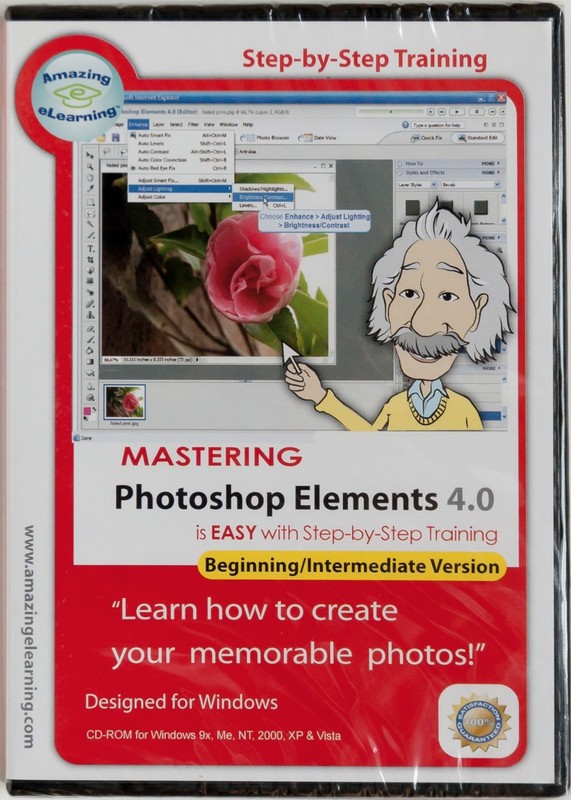
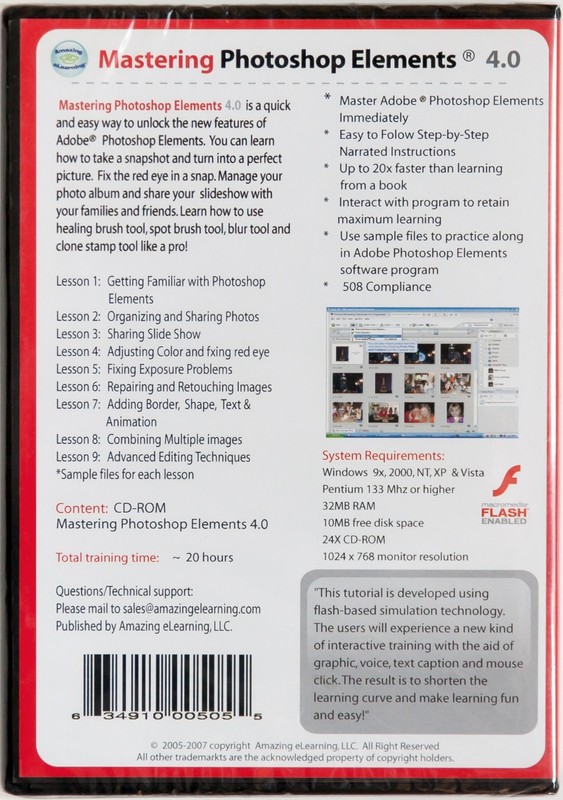
MASTERING Photoshop Elements 4.0 BRAND NEW IN A SHRINK-WRAP DVD CASE! Amazing Step-By-Step Training! Brand New In Shrink-Wrapped DVD Case ! Product Information Mastering Photoshop Elements 4.0 is a quick and easy way to unlock the new features of Adobe Photoshop Elements. You can learn how to take a snapshot and turn into a perfect picture. Fix the red eye in a snap. Manage your photo album and share your slideshow with your families and friends. New improved interactivity and full screen display to maximize your learning! Lesson 1: Getting Familiar with Photoshop Elements Launch Photoshop Elements Creating a new catalog Getting photos from a digital camera or card reader Getting photos from files and folders Organizer vs. the Editor Viewing tags Viewing photos at full screen or side-by-side Creating a greeting card Capturing still frames from a video Using Adobe Photoshop Elements Help Using the How To palette Lesson 2: Organizing and Sharing Photos Dragging photos from Windows Explorer Searching for photos to add Importing from a scanner Using watched folders Using Photo Browser view Using Date view Using stacks Creating Picture Packages Working with version sets To remove red eye in the Photo Browser Finding photos using details and metadata Viewing and managing files by their folder location Creating new categories and sub-categories Applying and editing category assignments Creating and applying tags to photos Converting tags and categories Using tags to find pictures Automatically finding faces for tagging Finding photos with visual similarity Using photo mail Sharing photos online Printing Printing a contact sheet Burning photos to CD or DVD Lesson 3: Sharing Creations Using the Slide Show Editor Adding text, graphics, audio, and narration to photos in the slide show Applying transitions Panning and zooming Reordering slides Choosing an output option for your slideshow Saving your slideshow Lesson 4: Adjusting Color in Images Quick Fix multiple files as a batch Adding the corrected files to the Organizer Opening image files for Quick Fix editing Use Smart Fix Applying other automatic fixes Duplicating an image file Automatically fixing color Applying further changes to automatically fixed images Combining automatic fix and manual image corrections Comparing results Adjusting skin tones Fixing red eye Darkening reflective animal eyes Using the Navigator palette Restoring surface highlights Using the Selection Brush Tool Editing a saved selection Using the Magic Selection Brush Tool Setting up layers Saving a selection Replacing color Saving and organizing finished files Setting up color management Lesson 5: Fixing Exposure Problems Brightening an underexposed image Using blending modes to fix a faded image Adjusting shadows and highlights manually Adjusting brightness and contrast manually Adjusting levels Creating adjustment layers for lighting Applying an adjustment layer to a limited area Comparing results Creating a selection Refining and saving a selection Correcting an overexposed areas of the image Correcting an underexposed area with other blending modes Adding more intensity Lesson 6: Repairing and Retouching Images Straightening an image Using the Magic Extractor to remove a background Merging photos into a panorama Cropping images Using the Healing Brush Tool Using the Spot Healing Brush Tool Using the Blur Tool Removing specs and scratches in your photo Using the Clone Stamp Tool Lesson 7: Working with Text Using the Organizer to find and open tagged files Adding an uneven border Adding a decorative border Formatting and adding a text layer Editing text Saving your work file Drawing custom shapes Adding text over a custom shape Creating a new document Adding embossed text to images Saving images for Web use Warping and styling text Simplifying and applying a pattern to text Hiding and revealing layers to review versions Using Layer Styles to create animations Adding effects to text Merging layers Animating layers Lesson 8: Combining Multiple Images Copying from one image into another Cropping to synchronize dimensions of two photos Combining pictures and resizing the canvas Using rulers and grids Erasing areas of image layers Using a gradient clipping path Applying the clipping path to a layer Creating a clean edge with defringing Lesson 9: Advanced Editing Techniques Adjusting exposure Using histograms to adjust shadows and highlights Using Set Gray Point Applying the Unsharp Mask filter Creating effects with the filter gallery Using the Cookie Cutter Tool System Requirements: Windows 9x/ME/NT/2000/XP Pentium 133 Mhz or higher 32MB RAM 10MB free disk space 24x CD-ROM Item will be shipped same-day (for payments received before 3:30PM Pacific time) for Paypal payments (For US shipments) for only $4.95!
Specifications
| All Returns Accepted | ReturnsNotAccepted |
| License Category | Standard |
| Language | English |
| Brand | Amazing eLearning |
MASTERING Photoshop Elements 4.0 BRAND NEW IN A SHRINK-WRAP DVD CASE! Amazing Step-By-Step Training! Brand New In Shrink-Wrapped DVD Case ! Product Information Mastering Photoshop Elements 4.0 is a quick and easy way to unlock the new features of Adobe Photoshop Elements. You can learn how to take a snapshot and turn into a perfect picture. Fix the red eye in a snap. Manage your photo album and share your slideshow with your families and friends. New improved interactivity and full screen display to maximize your learning! Lesson 1: Getting Familiar with Photoshop Elements Launch Photoshop Elements Creating a new catalog Getting photos from a digital camera or card reader Getting photos from files and folders Organizer vs. the Editor Viewing tags Viewing photos at full screen or side-by-side Creating a greeting card Capturing still frames from a video Using Adobe Photoshop Elements Help Using the How To palette Lesson 2: Organizing and Sharing Photos Dragging photos from Windows Explorer Searching for photos to add Importing from a scanner Using watched folders Using Photo Browser view Using Date view Using stacks Creating Picture Packages Working with version sets To remove red eye in the Photo Browser Finding photos using details and metadata Viewing and managing files by their folder location Creating new categories and sub-categories Applying and editing category assignments Creating and applying tags to photos Converting tags and categories Using tags to find pictures Automatically finding faces for tagging Finding photos with visual similarity Using photo mail Sharing photos online Printing Printing a contact sheet Burning photos to CD or DVD Lesson 3: Sharing Creations Using the Slide Show Editor Adding text, graphics, audio, and narration to photos in the slide show Applying transitions Panning and zooming Reordering slides Choosing an output option for your slideshow Saving your slideshow Lesson 4: Adjusting Color in Images Quick Fix multiple files as a batch Adding the corrected files to the Organizer Opening image files for Quick Fix editing Use Smart Fix Applying other automatic fixes Duplicating an image file Automatically fixing color Applying further changes to automatically fixed images Combining automatic fix and manual image corrections Comparing results Adjusting skin tones Fixing red eye Darkening reflective animal eyes Using the Navigator palette Restoring surface highlights Using the Selection Brush Tool Editing a saved selection Using the Magic Selection Brush Tool Setting up layers Saving a selection Replacing color Saving and organizing finished files Setting up color management Lesson 5: Fixing Exposure Problems Brightening an underexposed image Using blending modes to fix a faded image Adjusting shadows and highlights manually Adjusting brightness and contrast manually Adjusting levels Creating adjustment layers for lighting Applying an adjustment layer to a limited area Comparing results Creating a selection Refining and saving a selection Correcting an overexposed areas of the image Correcting an underexposed area with other blending modes Adding more intensity Lesson 6: Repairing and Retouching Images Straightening an image Using the Magic Extractor to remove a background Merging photos into a panorama Cropping images Using the Healing Brush Tool Using the Spot Healing Brush Tool Using the Blur Tool Removing specs and scratches in your photo Using the Clone Stamp Tool Lesson 7: Working with Text Using the Organizer to find and open tagged files Adding an uneven border Adding a decorative border Formatting and adding a text layer Editing text Saving your work file Drawing custom shapes Adding text over a custom shape Creating a new document Adding embossed text to images Saving images for Web use Warping and styling text Simplifying and applying a pattern to text Hiding and revealing layers to review versions Using Layer Styles to create animations Adding effects to text Merging layers Animating layers Lesson 8: Combining Multiple Images Copying from one image into another Cropping to synchronize dimensions of two photos Combining pictures and resizing the canvas Using rulers and grids Erasing areas of image layers Using a gradient clipping path Applying the clipping path to a layer Creating a clean edge with defringing Lesson 9: Advanced Editing Techniques Adjusting exposure Using histograms to adjust shadows and highlights Using Set Gray Point Applying the Unsharp Mask filter Creating effects with the filter gallery Using the Cookie Cutter Tool System Requirements: Windows 9x/ME/NT/2000/XP Pentium 133 Mhz or higher 32MB RAM 10MB free disk space 24x CD-ROM Item will be shipped same-day (for payments received before 3:30PM Pacific time) for Paypal payments (For US shipments) for only $4.95!